Saturday, 23 February 2013

Tutorial Flash Firmware On Samsung Galaxy S2 Via Odin

Today i propose the leadership base that every good android smartphone owner should know: how to flash a Firmware via Odin on Samsung Galaxy s2. Odin is a program very similar to J.A.F. to replace the smartphone Operating system as if it were new, or load a custom rom.

Finally, after almost 2 months from the date of the announcement since March 2012, it was only the user and the owner of the Samsung Galaxy s2 GT-I9100 & GT-I9100G received the android ice cream sandwich update. The news excited is for the owner of a Samsung Galaxy S2 because now able to upgrade Samsung Galaxy S2 to ICS 4.0. So now i will show you tutorial flash Firmware via Odin.this perfect and more userfriendly

Read First
  • Please follow all the step that i mentioned below for good result
  • Do with your own risk


Tools Required


Safety measures before commencing the process of flashing

  • Do Nandroid Backup
  • Make sure your smartphone batteries are in the stage of no less than 80% full.
  • Make sure you have install Kies on PC/laptop.


How to Flash Firmware Via Odin

  1. Make your device into USB Debugging Mode ( Settings-> Applications-> Development-> USB debugging )
  2. turn off your smartphone .
  3. Turn your phone to Download Mode by pressing button Volume Down + Home + Power simultaneously for a period of 5 – 10 times until appear Warning and click button Volume Up to continue.
  4. your phone will expose the exposure of Downloading, Do not turn off your phone
  5. Start Odin in the PC/laptop.
  6. Connect your smartphone to your PC/laptop using a USB cable.
  7. Wait for a few moments so Odin identifies the smartphone.tutorial flash firmware via odin on galaxy s
  8. NOTE : make sure you do not tick anything except the Odin Auto Reboot and f. Reset Time (default)
  9. Click the button and choose the PDA firmware that you have download and extract before this. (Also make sure you select the correct firmware for your model smartphone you) – File firmware file md5 tar
  10. Click Start, and the process of flashing will be done. Smartphone you will reboot automatically after process flashing finished.


Now after we completed all the step, your Samsung Galaxy s2  now have been flashed with Android ICS 4.0.4. After flash new firmware via odin if you want to get root access read on tutorial root samsung galaxy s2 I9100.

Polaris Office 4.0 Free For Android Phone

If you need to modify Word documents on your android smartphone there are several applications that are right for you but be prepared to pay because some of the office application isn't free. Now you can get Polaris Office 4.0 free download then you can install it on your Samsung Galaxy S3

This time, there are free Polaris Office 4.0 for the Samsung Galaxy S3. The app was directly at me at the launch of Samsung apps. If this is match with your android phone, you can just search for "Polaris" on google. Unfortunately, this app just for the galaxy S3 and not for other Samsung devices is available. With Polaris Office, you have a complete Office solution (so similar to MS Office or LibreOffice) for Android. It comes always at some point in the situation that you have to open an Office document and in this case if your Polaris have preinstalled Office on your S3.this perfect and more userfriendly

POLARIS OFFICE 4.0 FREE

polaris office 4.0 free

Polaris Office offers all the functionality and compatibility with MS Office on this PC. You can download the app in the end of this post. With this application, it will be possible to view and edit all types of documents such as:
  • Word
  • Excel
  • PowerPoint
  • Adobe PDF

So now if you want to download the Polaris Office 4.0 package, you can do it by go to the Samsung App Store visit there and perform the download. And now seems that Samsung decides will release Polaris Office 4.0 download for other smartphone models in the future.
Download Polaris Office if you want to save apk from directly from playstore read how to download apk from googleplay

Tubemate : Download Youtube Videos From Android Phone

There is some app that allows us to convert and download videos from Youtube in better format as mp4 and in the case of course music to mp3. Save your favorite Youtube videos on your Android smartphone has never been easier, much simpler than many procedures to do it on PC. Let's see how to do everything via TubeMate.
One of the most popular uses for android smartphone or devices is to take advantage of streaming videos, contect, films, television and music and one of the most common ways is through the FLV format. However, it is a disadvantage to save FLV content as it is much more problematic playback and quality suffers.this perfect and more userfriendly

Download Youtube Videos With Tubemate

One of the reasons for the android smartphone holders pride's  against those who have an iPhone or iPad is that you can see and download youtube videos without having to jailbreak.

The whole thing is very simple thanks to a TubeMate most useful programs from across the media category of the Google mobile operating system.

It must be said that for unknown reasons, while the android market does not always display all programs, doing a search with the name of the program you might find the suggestion to name the application "tubemate" (which proves that is part of the market), but without that then manages to find the installation file don't worry because there is a very easy to install and maintain for future reinstallations.

DOWNLOAD TUBEMATE
First we go into the android settings to enable the installation of external programs to market (as shown in the following image), then from your browser go to the following address : download tubemate and download the program directly from the official site.

download youtube videos from android phone

You can download this directly from your phone or from your computer, in the latter case, you must then pass the apk file in the Terminal manually, via usb, wifi and microsd (depends on the characteristics of your Terminal). After installing you can enjoy and download youtube videos from android

Anyway, I recommend that you save the file for future use, because even if they are new versions (tube mate enjoys an excellent support from its authors who update often enough) the program will first check start looking for any available upgrades and offering direct updating. Now lets continue to the tubemate settings part

How To Download Youtube Videos From Android Phone

  1. Download tubemate, if this link doesn't work you can find the download link from the picture above
  2. Using the search function at the top right will write the name of the clip that interests us
  3. Select the video from Youtube
  4. In the window you will find the Save button
  5. Choose the type of format that you want
    download videos with tubemate
  6. Once chosen we can monitor progress in Menu-> Download

Finish, Now after read this i hope you can enjoy youtube videos anytime you want on your android phone by download it and save to your memory

S Voice For Samsung Galaxy - S3 Siri Alternatives For Android

Samsung has finally revealed all about his new flagship, we are talking about the Samsung Galaxy S3. One of the most impressive features is the S Voice, the rival of Siri for iPhone, created specifically for Samsung Galaxy S 3. Speech commands are similar to the ones we've seen in stocks on other Android smartphone, but it is evident that the software has taken countless steps forward.this perfect and more userfriendly


S Voice For Galaxy S3 is The Rival For Apple Siri

s voice for galaxy s3

If you are use another android phone you can choose siri alternatives app : siri alternatives apps for android

What is S Voice ?
Samsung has improved the experience to compete with Apple's Siri. For example, s voice allows you to unlock your phone with a verbal command, customizable, and then receive instructions in order to upload applications, change calendar appointments, do research or do other tasks just by talking on the phone.

"How is the weather today?", "take a picture" and "Cheese!" Are all supported commands. If you're listening to music, you can tell S Voice to jumping, go back, play and pause put a song and many other commands.

S voice Features On Samsung Galaxy S3

An important s voice feature that is the fact with the Samsung S Voice you can actually open and launch applications with your own voice, and not only to check the weather forecast and set an alarm. While driving you can launch Spotify music streaming, open Google Maps , and much more, all with S-Voice. This brings voice commands to a completely different level, considering that Samsung has imagined what users would actually do with S-Voice.

How To Install S Voice For Samsung Galaxy S2

We know that S voice is new technology developed by samsung to compete with apple siri. On this post you can read about tutorial install S Voice On Samsung Galaxy S2. We talked several times of the Samsung Galaxy S 3 and S-Voice such as on this article S Voice For Samsung Galaxy S3 alternatives for siri , the new voice dictation / command service that Samsung has installed on this new Android smartphone.this perfect and more userfriendly

With the S Voice service draws on Samsung now: Who wants his Android phone to give instructions, must develop the upcoming flagship phone Galaxy S3 and Galaxy S2, as for other devices, the service is not yet planned. So it at least allow the developer to work for the best.


how to install s voice on galaxy s2


Today, we will see How to install S Voice for Samsung Galaxy S 2, the previous model of Samsung, on which the installation of S Voice brought some trouble for some users. Let's see how to install S Voice .

Requirements

Tutorial Install S Voice On Samsung Galaxy S2

  1. Download this archive from this link http://adf.ly/HZpEk, unpack it and copy the two files in any folder (create it from scratch) within the Galaxy S 2.
  2. Open Root Explorer
  3. Go to the /mnt/sdcard folder (if you copied the files in the internal memory) or /mnt/emmc (if you have them copied to the external memory)
  4. Go to the folder where you copied the files previously
  5. At the top you will find a statement saying Install R/W, press it. This step allows you to write system folders
  6. Press and hold on the file voicetalk.apk to the contextual menu, then select "copy"
  7. Go now in the /system/app folder and paste the file you just copied
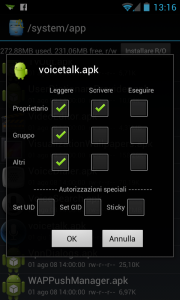
  8. Now, always in /system/app, hold on voicetalk.apk and in the menu select "permissions", to read as follows:
    s voice for galaxy s2
  9. Go to the folder where you originally inserted the file and copy libsvoctts.so
  10. Paste it in/system/lib
  11. Close Root Explorer and restart your Galaxy S 2.


Well, we had finished the installation process, it so simple, fast and easy to do. Now you can enjoy your voice assistant on your device. don't forget keep follow us Android Aplication review
If your device still not supported you can go to my post about : siri alternatives application for android